Allocator Workspace Overview
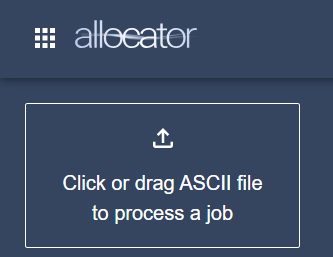
File Upload Section
On the left side of the Allocator Pro Workspace, you will find the File Upload box. You can upload files by either dragging and dropping them into the designated area or by clicking to use your browser.
Jobs List
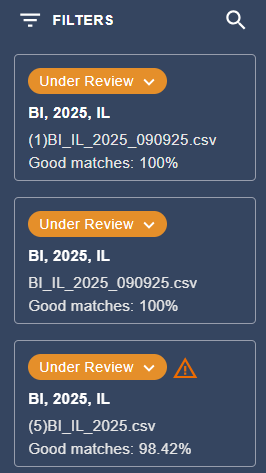
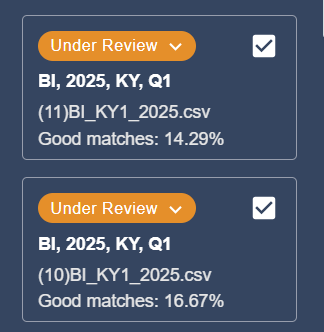
The jobs list displays the results of each file you processed, based on the product and company selections. This list includes filter and search functionality to help you quickly locate specific files. Each file entry displays the current status, which may be one of the following: Processed, Under Review, Approved, or Errors. Additionally, the list shows the file name and the percentage of good matches, which is further elaborated in the Job Summary Report tab. To see the reports for any job, click inside the box of that job.
Download and Export
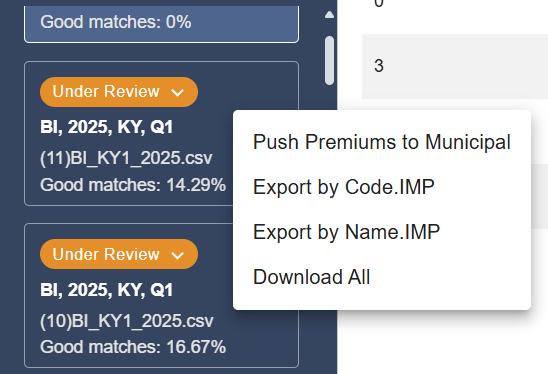
If you right click on any job, a menu will appear with various options to export your data.
- Push Premiums To Municipal. If you have registered a company in Stratus Municipal for the same year, state, and company, you can export results from allocator directly to Municipal.
- Export by Code.IMP. A file will be created and downloaded that can be imported into the Municipal product by municipal code.
- Export by Name.IMP. A file will be created and downloaded that can be imported into the Municipal product by municipal name.
- Download All. A zip file will be downloaded that contains each report in csv file format and an import file by municipal name.
You may also aggregate the results of multiple jobs while performing the options above. To aggregate jobs, select the check box for each applicable job before right-clicking and selecting the option you need. You may only aggregate jobs if the Company, State, Quarter, and Year for each job is the same. The results downloaded will include results for each job as well as an aggregated import file.
Main Reports Section
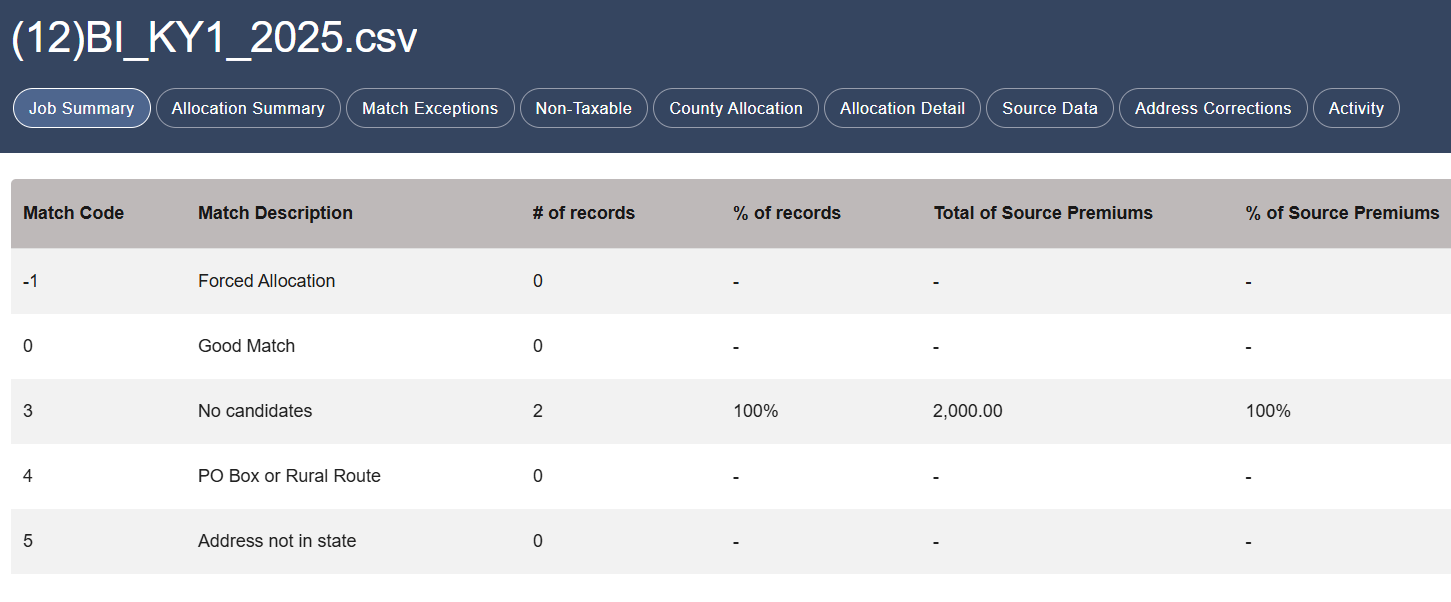
The central section of the web page is dedicated to reports, which will be detailed in the Reports section of this guide. Click on the correct tab to view the report you want to see.
Options
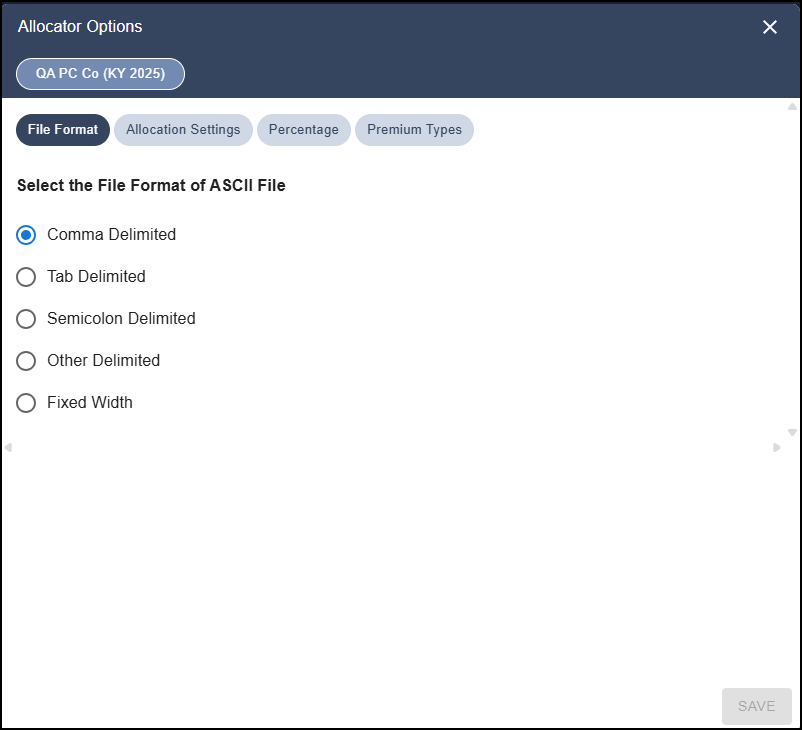
Select the gear icon to load the Options dialog. You can select the file format that corresponds to the file you will process. You may apply percentages to your premiums, and you may choose the option to use zip codes while allocated. See the Options section of this guide for more information.

Support
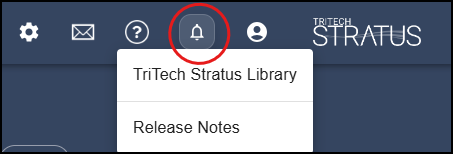
- Click the email icon to create an email with the TriTech support email address.
- Click the help icon to access help files and release notes.